Editing Colors
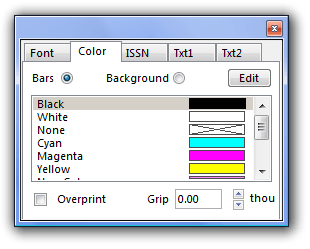
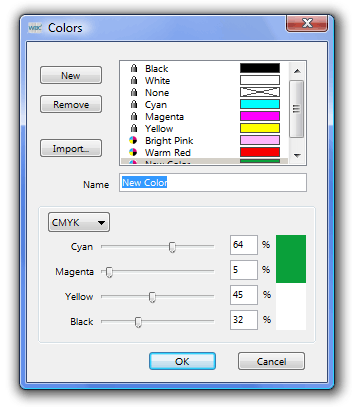
The Edit... button allows you to change a color or add a new one to the list. The button activates the Colors dialog box which displays the current list of available colors and includes a New button for adding new colors to the list.
Two different color models are available - RGB and CMYK.
The color model is selected from the menu button. The values for Red, Green & Blue, or Cyan, Yellow, Magenta and Black can be set using the slider controls or by typing the values directly.
Generally, spot colors are recommended for barcode printing. Care should be taken when selecting the colors you use as only some colors are legal. Most bar codes require bars which look dark in red light and a background which looks light in red light. The best combination is black bars on a white background, but bars can also be blue and green. possible background colors include red, yellow, orange, pink and light beige.
Process colors can be even more problematical. If the bar color is separated out onto more than one plate, a slight mis-registration could make the bar code unreadable. It is possible though to use solid process colors (100% cyan, 100% magenta, 100% yellow) where applicable.
The Import... button allows you to open any EPS file (e.g. from Illustrator, Freehand, etc.) and import a list of custom colors that have been defined in that document. You can then choose your bar code colors from these to ensure that it will appear on the correct spot color separation. |