|
||||||||
 |
|
 |
|
|
|






 |
 |
 |
 |
 |
 |
 |
Troubleshooting
If you experience problems when using MBC4, check out the known problems and their solutions on this page.
If you do not find a solution, please send a full description using the "Contact Us" link above and we will invesigate.
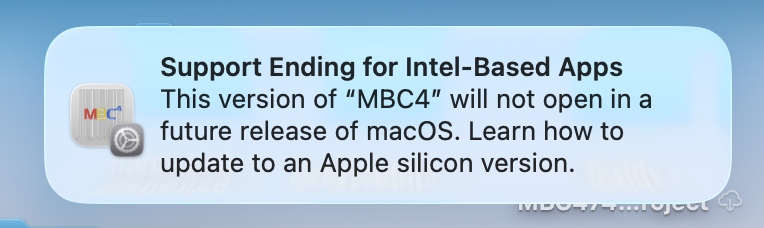 |
Confusing OS messages in Tahoe Some customers have contacted us after seeing this message |
Symptons:
Problem: Older versions of the MBC4 software may not run under more recent versions of the Mac OS. For example, OS 10.15 Catalina introduced new reqirements such as Notarization and the Hardened Runtime Environment which mean that you may need to upgrade. Users of MBC 4.7.0 and later can obtain a free upgrade. For older versions a paid upgrade is available. See the Upgrade page for more information. Symptons: Problem: Please note: this error should not occur in MBC4.7 and later as fonts are now built-in. Explanation: A number of fonts are supplied with the software for use in the human-readable text that sits below the bars (and/or elsewhere on the barcode). If the fonts are missing or not installed correctly, you may see a warning message. Solution: Ensure that the Computalabel fonts are stored in the Fonts folder that inside the Library folder that is in your User Directory. Check that you do not have multiple copies of the same font installed. Check that MBC4's access to the Computalabel fonts is not impeded by any third-party font management software. Replacement fonts and fonts in alternate formats (Open Type, PostScript, TrueType) are available from Computalabel. Just let us know your MBC version number and the Mac OS version that you are using. Symptons: Problem: Explanation: MBC4 and it's associated files are stored in a folder which the installer creates inside your Applications directory. MBC4's fonts are installed in the Fonts folder inside your Library folder. It is essential that you have permission to change the contents in these locations. If you do not, the installer will be unable to complete the installation. Solution: Check that you have permission to alter the Applications folder and the Fonts folder by creating a new folder inside them. If you are unable to do so, you will need to alter the permissions settings or the type of account that you are using. You will normally need an Admin account to install the software.
Symptons: Problem: Explanation: 3. Remove the Prefs file from the Preferences folder. You may put it in the trash, or you might want to send it to us for further investigation. Note: When the Prefs file is removed MBC4 reverts to it's default settings. The barcode type will be EAN-13 or UPC-A and the Adjustment settings will have been reset to zero. It is most important that these settings are returned to their previous values.
|
Symptons: Problem: Explanation: Older versions of MBC4 (Version 4.4 and earlier) are not supported on the newer versions of MacOS. In many cases however, they have continued to work without problems. Updates to the Mac OS in March 2019 have now rendered the older versions incapable of saving files. The current version (4.7.x) is fully compatible with the lastest OS versions. You can upgrade for a reduced price. See the Upgrade Page for more details.
Symptons: Problem: Explanation: If you purchased MBC4.1.x, the file is called "MBC41 Registration". If you purchased MBC4.2.x, the file is called "MBC42 Registration". If you purchased MBC4.3.x, the file is called "MBC43 Registration". If you purchased MBC4.4.x, the file is called "MBC44 Registration". If you purchased MBC4.5.x, the file is called "MBC45 Registration". If you purchased MBC4.6.x, the file is called "MBC46 Registration". If you purchased MBC4.7.x, the file is called "MBC47 Registration". Solution:
|


